Add custom dashboards to BAM2 to monitor API usage


The gadget generation tool is a step by step wizard that allows you to generate gadgets for your dashboard in a few simple steps. These steps are:
  1. Enter JDBC data source details
  2. Enter SQL to fetch data
  3. Pick UI element for gadget
  4. Enter gadget details
  5. Add gadget to dashboard
To use this tool, Click on the "Gadget Gen Tool" located in the left menu.
To explain these steps, let's create a simple gadget out of some summarized data off the KPI Definition sample.


Enter JDBC Data Source Details
Enter the necessary details, for your data source. If you are using any other data source other than h2 (mysql, oracle, mssql, etc.) the relevant driver needs to be placed in $BAM_HOME/repository/components/lib and the server should be restarted. For this example we will use same stats database.

The details entered here are:
  • JDBC URL : jdbc:mysql://datacenter1:3306/am_stats_db
  • Driver Class Name :com.mysql.jdbc.Driver
  • User Name : root
  • Password : root

To check whether the details are correct, you can click on "Validate Connection". If the connection is successful you will get a success message and a failure message if the connection cannot be made. Now, click "Next".
Enter SQL To Fetch Data
In this step, you need to enter the SQL that will fetch the required data for your gadget. You can click the "Preview SQL Results" button, to preview the results returned by the SQL Query.

Here the SQL statement used is : select * from brandSummary. The image below shows the results returned from this query. Now, click "Next". For different dashboards we will use following sql queries.

Get API usage(request count) per user.
SELECT sum(total_request_count),userId FROM API_REQUEST_SUMMARY group by userId;

Get API usage(request count) per API.
SELECT sum(total_request_count),api FROM API_REQUEST_SUMMARY group by api;

Get API response time per API/version.
SELECT serviceTime, api_version FROM API_RESPONSE_SUMMARY;

Get API usage(request count) per data center.
SELECT hostName as data_center_domain, sum(total_request_count) FROM API_REQUEST_SUMMARY group by hostname;


Pick UI Element For Gadget
This step allows you to pick the UI element for visualizing your data. Bar graphs and Tables are supported for this release. All options you pick are instantly reflected in the preview area.

Bar graph
The bar graph gives you some configuration options to customize the view of the generated gadget. These are:
  • Chart Title - Title of the char
  • Y-Axis Label - Title of the Y Axis
  • Y-Axis Column - Column for the Y Axis returned from the results
  • X-Axis Label - Title of the X Axis
  • X-Axis Column - Column for the X Axis returned from the results
The options you pick are reflected in the preview area as highlighted by the colors in the screen shot below.

Table
The table give you a configuration option:
  • Table Title : The title of the table

Let's create a bar graph with options shown in the bar graph image for this sample. Click "Next".
Enter Gadget Details
We are at the final stage of the gadget generation. We need to enter the following details:

  • Gadget Title : Each gadget will have a title that describes what the gadget's functionality. Enter the generated gadget's title here.
  • Gadget Filename : The filename of the gadget as it will be stored in the system. In this case it will be stored in the embedded registry.
  • Refresh rate : The gadget can have a refresh rate, where it will automatically refresh and pull the latest contents out of the data source.  


    Now, click "Generate!".

    Add Gadget To Dashboard
    Now, the gadget has been generated. Copy the location of the gadget displayed in the screen.
    Next, click "View Portal" from the left hand side menu.
    Click on add gadget on the left hand side of the portal page.
    Expand the "Enter Gadget Location" section on the right hand side and paste the gadget location. Then, click on "Add Gadget".
    Now, the gadget will be shown in the dashboard as shown in the screen below. Continue same process if you need to add more graphs to dashboard.


How to deploy WSO2 API Manager with BAM

Create database named am_stats_db to store summarized data from BAM. You don't need to create any tables inside database (analyzer scripts will create them when need).

configure the data source definition in the master-datasources.xml file of API Manager and BAM as follows. We need this data source in bam to store summarized data(analyzer script do it). We use same data source inside API manager to pull out aggregated data to present it.
<datasource>
<name>WSO2AM_STATS_DB</name>
<description>The datasource used for getting statistics to API Manager</description>
<jndiConfig>
<name>jdbc/WSO2AM_STATS_DB</name>
</jndiConfig>
<definition type="RDBMS">
<configuration>
<url>jdbc:mysql://localhost:3306/am_stats_db</url>
<username>root</username>
<password>root</password>
<driverClassName>com.mysql.jdbc.Driver</driverClassName>
<maxActive>50</maxActive>
<maxWait>60000</maxWait>
<testOnBorrow>true</testOnBorrow>
<validationQuery>SELECT 1</validationQuery>
<validationInterval>30000</validationInterval>
</configuration>
</definition>
</datasource>


To enable API statistics collection you need to configure the following properties in the api-manager.xml
file of API Manager.


<!--Enable/Disable the API usage tracker.-->
<Enabled>true</Enabled>
<!-- JNDI name of the data source to be used for getting BAM statistics.This data source should be
defined in the master-datasources.xml file in conf/datasources directory. →>
<DataSourceName>jdbc/WSO2AM_STATS_DB</DataSourceName>


Change port offset to 1 by editing the repository/conf/carbon.xml if you are running all servers in same box(This step is required as we publish data to port 7712 from API manager). For more details go to usage tracking section of api-manager.xml file and change it as required.

Copy the API_Manager_Analytics.tbox(available under wso2am-1.3.0/statistics) to repository/deployment/server/bam-toolbox (Create the bam-toolbox directory if it already doesn't exist) Copy the MYSQL JDBC driver jar file into the INSTALL_HOME/repository/component/lib folder for all APIManager/ BAM servers.

So you are almost done start both servers. And see how API usage data publish to bam and summarize there.

Usage of WSO2 API Manager's login api

Login uri in API Manager gateway is acting as another API. Actually what it does is expose OAuth2 login functionality as API.  Once we send request with /login as context gateway will send to https://localhost:9443/oauth2endpoints/token(key management nodes token end point) which is configurable. OAuth2 end point is responsible for all OAuth related functionality. Most common use case of using this end point is obtaining new user token. We can use any client application for this such as advanced rest client curl or any other application. Lets see how we can obtain new user token.

When we create new application we can get consumer key and consumer secret key pair. Also each user is getting application token which can be expire after some time. So if some user want to generate new user token for his application they can use this end point. Each user is having username and password. We have to use all these parameters to obtain new token. 

If you are using advanced rest client set parameters as follows
URL - https://127.0.0.1:8243/login
Method - POST
Body - grant_type=password&username=admin&password=admin&scope=PRODUCTION
Also add following headers
01.Content-Type - application/x-www-form-urlencoded
02.Also add  Basic Authorization header by setting consumer key as  Username and consumer secret as Password


If you are using curl command use following instructions
generate following string by concatenating consumer key and secret key.
Consumerkey:consumersecret
Encode it as Base64 encoded string. It will give some string. For this example it would be KBjmo8mUxLCs_7l9CZXgg9fs6Pcap_P7bTvVxz7tXO2use4emXxENSga
Use following curl command to obtain new user token

curl -k -v -d "grant_type=password&username=username&password=password" -H "Content-Type: application/x-www-form-urlencoded" -H "Authorization :Basic KBjmo8mUxLCs_7l9CZXgg9fs6Pcap_P7bTvVxz7tXO2use4emXxENSga" https://127.0.0.1:8243/login

From this service call you will get access token(token which can use to access application apis), refresh token(token which can use to refresh token) and validity period(validity period of issued token) inside response body. So that is the basic usage of login api of WSO2 API manager login api.

URL Template, URL Mapping and their usages in API Manager

 WSO2 API Manager is a complete solution for publishing APIs, creating and managing a developer community and for scalably routing API traffic. It leverages proven, production-ready, integration, security and governance components from the WSO2 Enterprise Service Bus, WSO2 Identity Server, andWSO2 Governance Registry. In addition, as it is also powered by the WSO2 Business Activity Monitor, the WSO2 API Manager is ready for massively scalable deployment immediately.

Here in this post i wanted to discuss about the differences between url-template and url-mapping. Also its really important understanding query parameters and path parameters and their usages. This is very important when it comes to API management as each API resource map to some sort of url template or url mapping. Most API management tool do not allow you to define resources in a very specific way. All of them allow you to define very simple url patterns like url mapping does. But with that you cannot validate complex url patterns before it send to actual back end service. We can use ril-template for that type of complex mappings. Lets see how we can do it.

URL Template
A URL Template is a way to specify a URL that includes parameters that must be substituted before the URL is resolved. The syntax is usually to enclose the parameter in Braces ({example}). The convention is for a parameter to not be Percent encoded unless it follows a Question Mark (?). Advantage of url template is you can define path parameters inside url template definition. See following example. We can define url template with exact number of parameters and their locations inside url and etc. Also see sample url which maps to that url template.

uri-template="/view/{symbol,symbol1}/test/{symbol3,symbol4}/test1"

Sample URL /view/12,12/test/14,15/test1

If someone has url like
 /view/12,12/test/14,15/test1/test2 or /view/12,12/test-change/14,15/test1

API gateway will simply reject that request saying no matching resource found. This is really usefull if you need to validate exact URL before it hits your API.

From next version of WSO2 API Manager(After 1.1.0) you will be able to define path parameters and query parameters both in url template. See following example.

uri-template="/view/{symbol,symbol1}/test/{symbol3,symbol4}/test1/*

This * mark says that you can have anything after test1/ so you can have any query paramaters after that point.

Sample URL /view/12,12/test/14,15/test1/data?name=sanjeewa&mood=hap

URL Mapping
URL Mapping allows users to create constant user friendly URLs and map them to resources. As API creator create the URLs, they can define human readable names for them. The self defined URLs can be published externally and thereby made available to API consumers. Most importantly you cannot have path parameters inside url mapping definition. You can have some sort for context for given resource. If you create API from WSO2 API Manager publisher UI it will automatically created API mapping for your API. If you need to define url template you have to go to sequence editor and edit it manually.

Query parameters and path parameters
Lets see what is query parameter and what is path parameter. In the World Wide Web, a query string is the part of a Uniform Resource Locator (URL) that contains data to be passed to web applications.

A URI path parameter is part of a path segment that occurs after its name. Path parameters offer a unique opportunity to control the representations of resources. If you have multiple parameters in between resources you can separate them by , or ;.

How to protect you'r API's from common attacks using WSO2 API Manager

WSO2 API Manager is a complete solution for publishing APIs, creating and managing a developer community and for scalably routing API traffic. It leverages proven, production-ready, integration, security and governance components from the WSO2 Enterprise Service Bus, WSO2 Identity Server, andWSO2 Governance Registry. In addition, as it is also powered by the WSO2 Business Activity Monitor, the WSO2 API Manager is ready for massively scalable deployment immediately.

Here in this article i will briefly describe how to protect your actual back end from higher loads of requests and some sort of DOS attacks. Most importantly you can secure, protect and shape up traffic using WSO2 API manager.

In a denial of service attack, the user can send several requests to actual back end service and overload it. Sometimes these requests may have have false return addresses, so the server can't find the user when it tries to send the response back. Also service tries to process so many requests at same time which causes to reduce performance and consume CPU and memory a lot. When server close the connection due to failure, the attacker sends a new batch of forged requests, and the process begins again--tying up the service indefinitely.

One of the more common methods of blocking a "denial of service" attack is to set up a filter or pattern recognition mechanism in front of server before request hits actual back end service. The filter can look for attacks by noticing patterns of incoming traffic. If a pattern comes in frequently, the filter can block messages containing that pattern.

So now we will see how we can achieve this from WSO2 API Manager. If you are familiar with API's you know what API does. If you are using WSO2 API Manager you can engage different throttling policy per each API. Lets say you have one back end which cannot handle 1000 requests same time or so. In that case you can limit concurrent access to that service using API manager. What you have to do is define a throttling policy saying number of concurrent requests  and engage it to your API pointing to actual back end service.

01. Create throttling policy. See following throttling policy which allows 1000 concurrent requests to service.

<wsp:Policy xmlns:wsp="http://schemas.xmlsoap.org/ws/2004/09/policy"
xmlns:wsu="http://docs.oasis-open.org/wss/2004/01/oasis-200401-wss-wssecurity-utility-1.0.xsd"
xmlns:throttle="http://www.wso2.org/products/wso2commons/throttle"
            wsu:Id="WSO2MediatorThrottlingPolicy">
    <throttle:MediatorThrottleAssertion>
        <throttle:MaximumConcurrentAccess>1000</throttle:MaximumConcurrentAccess>
        <wsp:Policy>
            <throttle:ID throttle:type="IP">other</throttle:ID>           
        </wsp:Policy>
    </throttle:MediatorThrottleAssertion>
</wsp:Policy>

02. Upload it as registry resource. For this you can use resource link available in management console of API manager. Go to goverence/apimgt/applicationdata path and upload created policy file. Please make sure to give same path for policy key in API definiton on next step


03. Engage policy to your API as follows. For this you can use source view of synapse configuration editor. Click on source view of API manager management console side menu then you can find configuration related to each and every API created. Add it to your API definition as follows. For example i will take login API.

<?xml version="1.0" encoding="UTF-8"?><api xmlns="http://ws.apache.org/ns/synapse" 
name="_WSO2AMLoginAPI_" context="/login">
    <resource methods="POST" url-mapping="/*">
        <inSequence>
            <send>
                <endpoint>
                    <address uri="https://localhost:9493/oauth2/token"/>
                </endpoint>
            </send>
        </inSequence>
        <outSequence>
            <send/>
        </outSequence>
    </resource>
    <handlers>
 <handler class="org.wso2.carbon.apimgt.gateway.handlers.throttling.APIThrottleHandler">
       <property name="id" value="A"/>
       <property name="policyKey" value="gov:/apimgt/applicationdata/throttle.xml"/>
       </handler> 
<handler class="org.wso2.carbon.apimgt.gateway.handlers.ext.APIManagerExtensionHandler"/>
    </handlers>
</api>

04. test the service

Other common use case is IP address based throttling. For this you may want to limit number of requests send by some client IP(Let say 10 call from single client). So we can use policy shown below. If client from 10.1.1.1 ip address it will allow only 1 API call per minute. If it is any other IP address it will allow only 2 API calls per minute. This is so cool. Isn't it? You can secure, protect, traffic shaping, load balancing using single product

<wsp:Policy xmlns:wsp="http://schemas.xmlsoap.org/ws/2004/09/policy"  
xmlns:throttle="http://www.wso2.org/products/wso2commons/throttle">   
<throttle:MediatorThrottleAssertion>    
<wsp:Policy>            
<throttle:ID throttle:type="IP">10.1.1.1</throttle:ID>            
<wsp:Policy>                
<throttle:Control>                    
<wsp:Policy>                        
<throttle:MaximumCount>1</throttle:MaximumCount>                        
<throttle:UnitTime>60000</throttle:UnitTime>                    
</wsp:Policy>                
</throttle:Control>           
</wsp:Policy>        
</wsp:Policy>
     
<wsp:Policy>            
<throttle:ID throttle:type="IP">other</throttle:ID>            
<wsp:Policy>                
<throttle:Control>                    
<wsp:Policy>                        
<throttle:MaximumCount>2</throttle:MaximumCount>                        
<throttle:UnitTime>60000</throttle:UnitTime>                   
 </wsp:Policy>                
</throttle:Control>            
</wsp:Policy>        
</wsp:Policy>    
</throttle:MediatorThrottleAssertion></wsp:Policy> 

WSO2 API Manager - How to use thrift for api validation call between Gateway and Keymgt servers

WSO2 API Manager is a complete solution for publishing APIs, creating and managing a developer community and for scalably routing API traffic. It leverages proven, production-ready, integration, security and governance components from the WSO2 Enterprise Service Bus, WSO2 Identity Server, andWSO2 Governance Registry. In addition, as it is also powered by the WSO2 Business Activity Monitor, the WSO2 API Manager is ready for massively scalable deployment immediately.

If we deployed API Manager in a distributed way we have separate keymgt server for validation and authentication purpose. Normally when some api call hits API gateway it do some security check. For that verification we pass access token, api, api version. So once any API call hits gateway it will extract those parameters and do check whether this token is valid one or not. Its very simple and straight forward. For that gateway calls to Keymgt server per each call if cache is not available at gateway side. As we all know web service call is always bit costly operation. So we thought its better if we can put thrift there. So thrift implementation for validation call will be available in next generally available release of API Manager 1.0.1 (not in 1.0.0 release).

So here in this post i will describe how to add configurations for that change. Here i will describe how should we do this for distributed setup. Let say we have 2 gateway nodes 2 keymgt nodes in four different machines. So ideally 2 thrift servers should run in both keymgt nodes and 2 clients should run on gateway nodes. So when api call comes gateway does a call to keymgt and load balancer sent it to one keymgt node based on load balancer algorithm.

If each node runs on different machines we can have identical configuration for both gateway nodes and same applies to keymgt as well. This

So Add following entries to APIKeyManager section of api-manager.xml file available in /repository/conf (gateway node). So ServerURL parameter says where is keymgt server is running in addition to that we have to specify thrift client port(it is the same as thrift server port of keymgt node). Actually its not necessary to run thrift server at gateway node but we will keep it as completeness.

&lt;ServerURL>https://192.168.113.209:9493/services/&lt;/ServerURL>
&lt;KeyValidatorClientType>ThriftClient&lt;/KeyValidatorClientType>
&lt;ThriftClientPort>10397&lt;/ThriftClientPort>
&lt;ThriftClientConnectionTimeOut>10000&lt;/ThriftClientConnectionTimeOut>
&lt;ThriftServerPort>10399&lt;/ThriftServerPort>


So Add following entries to APIKeyManager section of api-manager.xml file available in /repository/conf (keymgt node). Here important parameter is thrift server port as gateway tries to connect it.

&lt;KeyValidatorClientType>ThriftClient&lt;/KeyValidatorClientType>
&lt;ThriftClientPort>10398&lt;/ThriftClientPort>
&lt;ThriftClientConnectionTimeOut>10000&lt;/ThriftClientConnectionTimeOut>
&lt;ThriftServerPort>10397&lt;/ThriftServerPort>


So we have done the configurations. Then copy necessary thrift jar files to repository/component/dropins folder and restart both servers.If you want to go back to web service call change key validator client type in to WSClient

WSO2 API Manager advanced validation information caching configurations

WSO2 API Manager is a complete solution for publishing APIs, creating and managing a developer community and for scalably routing API traffic. It leverages proven, production-ready, integration, security and governance components from the WSO2 Enterprise Service Bus, WSO2 Identity Server, andWSO2 Governance Registry. In addition, as it is also powered by the WSO2 Business Activity Monitor, the WSO2 API Manager is ready for massively scalable deployment immediately.
 
If we deployed API Manager in a distributed way we have focus on few important things. Caching is one of the most important thing. Normally when some api call hits API gateway it do some security check. For that verification we pass access token, api, api version. So once any API call hits gateway it will extract those parameters and do check whether this token is valid one or not. Its very simple and straight forward. But as we know gateway hits all most all the traffic goes to actual apis. So this verification process should faster one. For that we are using cache. So we cache validation information object with the key containing token, api name and version. This cache can store at gateway side or keymgt side. Please note that these configurations are valid only after API Manager 1.0.0 release and its not available on 1.0.0 main release. Here we can consider 2 main scenarios.

01. Cache at gateway side.
If cache is available at gateway side when request hits gateway it first populate cached entry for given token and if it is not available on cache it will cal to keymgt server. Normally this happens through web service call. so once keymgt returns validation information we can store it in gateway. This is obviously fastest way of doing this as this reduces web service calls to keymgt server.

02. Cache at keymgt side.
For each call hits gateway it calls to keymgt server and there is a cache at keymgt side. So if entry is available in cache it returns else do database call and check the validity of the token. This method has known performance issue as it there is a web service call to keymgt server form gateway for each api call. But advantage of this method is we do not have to store any security related information at gateway side.

For each validation information object we have JWT token. Normally it also got cached with validation information object. But in some scenarios you might want to generate JWT per each call. So we can do that by using configuration. But please note that we can do this only when cache resides at keymgt side.

If you didn't set any of these configurations  (by default) cache is available at gateway side and JWT is also cached with validation information object we are using this as default configuration as its the fastest way. If you need to change default configuration follow given instructions.

Move cache to keymgt server form gateway
Disable the caching at gateway side by adding following entry to APIGateway section of api-manager.xml file available in /repository/conf (gateway node)

<EnableGatewayKeyCache>false</EnableGatewayKeyCache>


Enable ketmgt server side caching by adding following entry to APIKeyManager section of api-manager.xml file available in /repository/conf (keymgt node)

<EnableKeyMgtValidationInfoCache>true</EnableKeyMgtValidationInfoCache>


If you want to disable or enable JWT caching at keymgt server side add following entry to APIKeyManager section of api-manager.xml file available in /repository/conf (keymgt node).

<EnableJWTCache>false</EnableJWTCache>


Also please note that you have to add following entry to the root level of api-manager.xml file available in /repository/conf (keymgt node) to generate JWT token at keymgt server side.

<APIConsumerAuthentication.EnableTokenGeneration>
true
</APIConsumerAuthentication.EnableTokenGeneration>

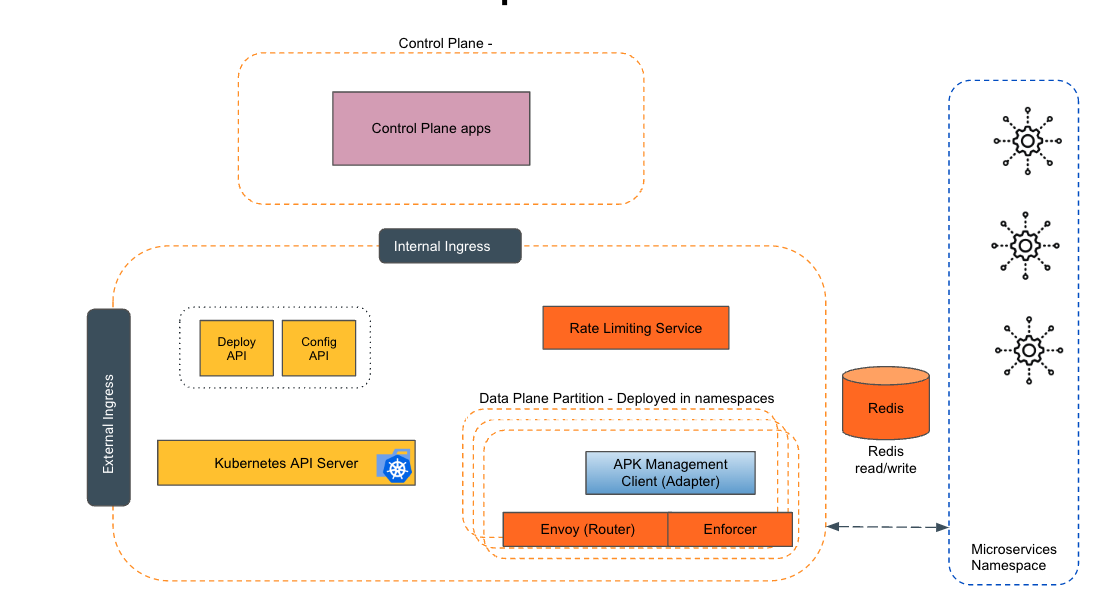
Empowering the Future of API Management: Unveiling the Journey of WSO2 API Platform for Kubernetes (APK) Project and the Anticipated Alpha Release

  Introduction In the ever-evolving realm of API management, our journey embarked on the APK project eight months ago, and now, with great a...